How to Convert SVG to PNG
Download a PNG from an SVG, choose the right sizing workflow, and avoid confusing a transparent background with white artwork.
In this guide 5 sections
Use the SVG converter for a quick SVG-to-PNG download. If you need to arrange artwork, choose a custom canvas size, or export at 2× scale, use the SVG editor instead. Keep the original SVG as your editable master.
Quick conversion in the converter
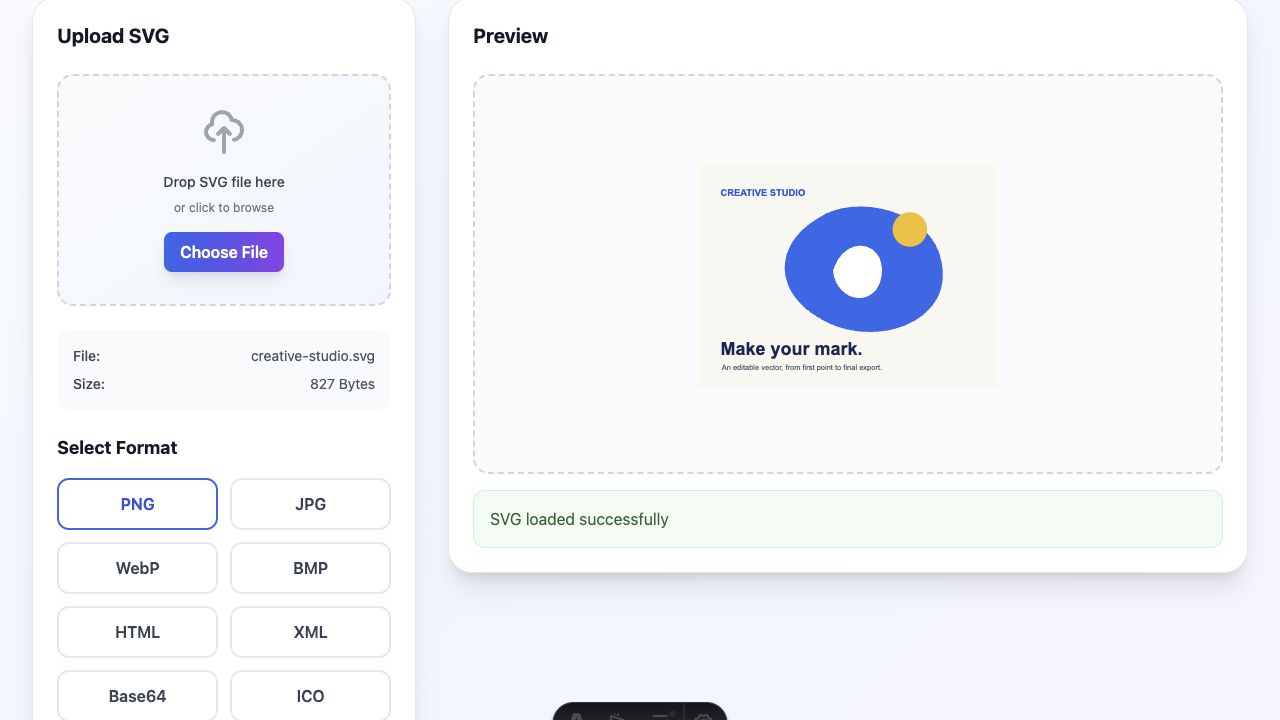
- Open the converter and choose Choose File, or drop an SVG into the upload area.
- Check that the preview contains the complete design, including text and edges.
- Choose PNG under Select Format.
- Choose Download PNG and inspect the saved image.
The current converter does not have a custom width or resolution field. It uses the SVG’s dimensions or viewBox and limits the longest raster edge to 2,000 pixels without enlarging smaller sources. Do not look for a resolution slider on this page.
Choose a custom size or a 2× export in the editor
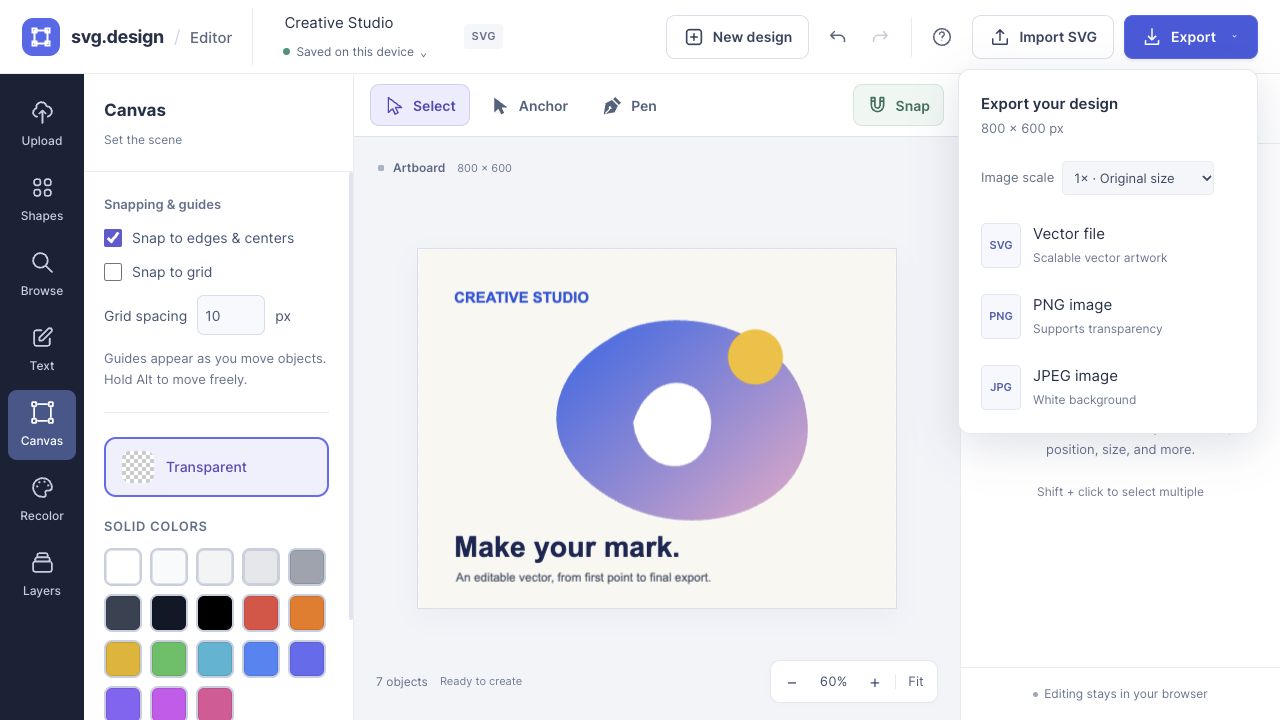
Open your SVG in the editor. In Upload, Match canvas to first SVG can make the artboard follow the source file. To use a different size, select a canvas preset or choose Custom and enter width and height.
Changing the artboard size does not automatically lay out the objects again. Resize and position the artwork so it fits, keeping Lock proportions on for logos and icons. Objects outside the artboard may be clipped in the download.
Open Export, choose Image scale, then PNG. For example, an 800 × 600 canvas produces an 800 × 600 PNG at 1× or a 1,600 × 1,200 PNG at 2×. The editor limits raster exports to 32 megapixels, so very large canvases may need a smaller size or scale.
Keep transparency where you need it
PNG supports transparent pixels. In the editor, choose Canvas → Transparent to leave empty artboard regions transparent. A white rectangle inside the SVG is artwork, so it remains white until you remove it or change its fill. The checkerboard on the canvas represents transparency and is not exported as a pattern.
If a downloaded PNG looks white in an image viewer, place it on a colored background to distinguish a transparent region from a white object. JPG uses a solid background, so choose PNG when the design needs to sit over another image or color.
Check sharpness and missing details
View the downloaded PNG at its intended display size. Too few pixels can soften small text and fine strokes; a larger export helps only when the underlying content has detail to render. An embedded photograph inside an SVG is still a pixel image.
If text or an effect differs from the source, check font availability and the imported artwork before export. Compare the result on the platform where you will use it, since some destinations resize uploaded images.
Save both versions for different jobs
Use the PNG for a fixed-resolution image in a presentation, post, or upload form. Keep the SVG for future recoloring, resizing, and path editing. The SVG vs PNG guide explains that choice in more detail.
Make it yours.
Keep this guide open and give it a try.