How to Extract a Color Palette from an Image
Place sampling points on the colors you want, remove duplicates, and save a useful palette reference.
In this guide 5 sections
The color palette extractor lets you place draggable sampling circles on an image and copy the color at each point. It is a hands-on way to build a palette from a photo, illustration, or logo. The circles sample individual pixels; they do not automatically rank the image’s most common colors.
1. Upload a useful reference
Choose a PNG, JPG, or WEBP within the displayed 12 MB limit. A clear original makes it easier to place samples accurately. For a quick practice run, use the Creative Studio PNG example.

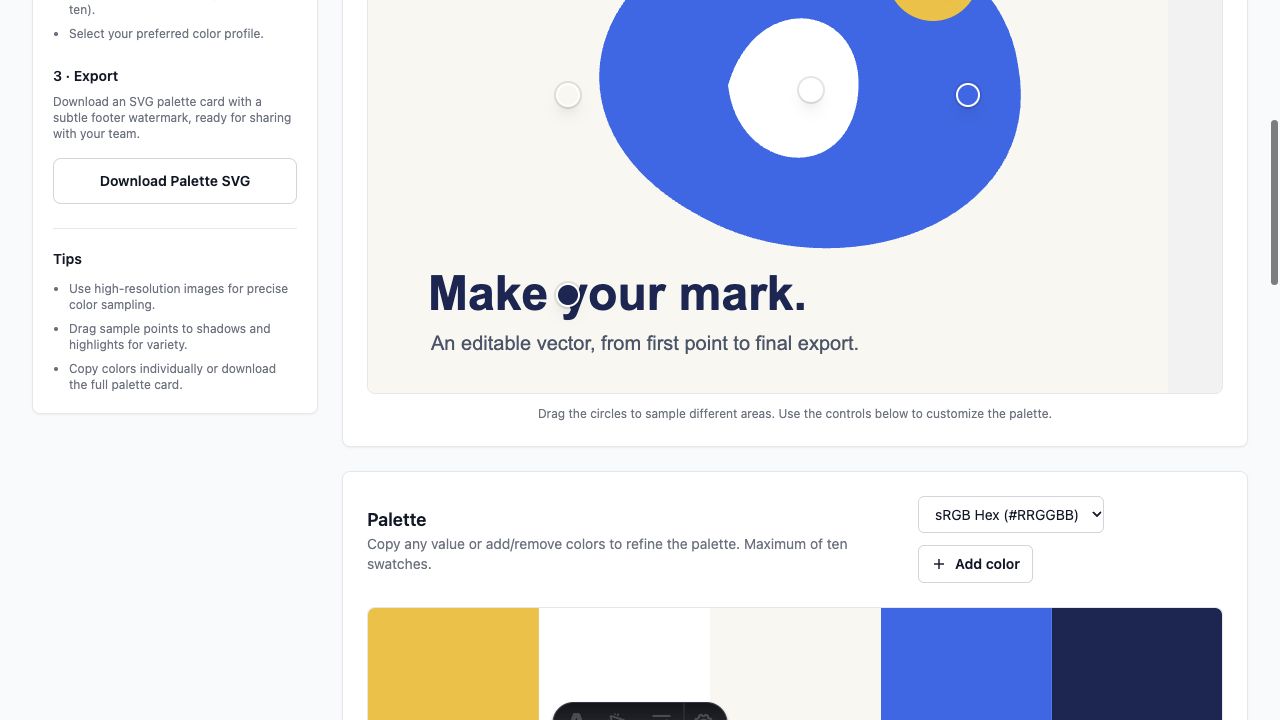
The tool places initial sample points on the image. These starting positions can land on the same background or on an unrepresentative detail. Treat them as movable pickers rather than a finished palette.
2. Drag each picker onto a deliberate color
For the sample image, place circles inside the yellow accent, white center, paper background, large blue shape, and dark lettering. Aim for a flat interior region rather than the boundary of a shape. Antialiasing along an edge can produce a mixed color that is not the intended fill.
For a photograph, choose a useful range: perhaps the main subject color, a supporting tone, a dark shade, a light shade, and a small accent. A highlight can be very different from the material’s underlying color, so decide which one serves the design.
3. Refine the number and format of swatches
Use Add color for another sample, up to ten colors, or remove redundant swatches. A smaller set with distinct roles is often easier to apply than ten nearly identical values.
Choose the Color profile according to where you will use the result:
- sRGB Hex: a practical choice for entering values in the editor’s Fill controls and many design applications.
- CSS HSL: useful when your stylesheet works with hue, saturation, and lightness.
- Display P3: use where the destination supports that color notation and you have checked its appearance.
Click an individual swatch or value to copy it. The sampled value comes from this image as rendered by the browser; it is not a measurement of a physical material or a replacement for an official brand color specification.
4. Download a reference or apply the colors
Download Palette SVG creates a swatch card, not a traced vector version of the uploaded image. Enabling Include the image (JPG) changes the export to a JPG reference containing the image and palette. Choose based on whether you need editable swatches or a visual reference with the source.
To recolor artwork, open it in the editor and paste values into individual Fill controls. Use Recolor when matching solid colors should change across the entire composition.
Why do the sampled colors look slightly wrong?
Check that the circle is inside the intended region, not on an edge or shadow. JPEG compression, image filters, and screenshots can change values from the original artwork. If an exact logo color matters, use the official value or inspect the original SVG rather than sampling a compressed preview.
For a palette without a reference image, browse the curated palette library. For blended fills, continue with the gradient guide.
Make it yours.
Keep this guide open and give it a try.