How to Merge SVG Files
Combine SVG files on a shared artboard, arrange and edit their components, and export a single vector document.
In this guide 8 sections
To merge SVG files into one document, import them into the SVG editor, arrange the artwork on a shared artboard, and export SVG. This works for a logo lockup, several icons, or a layered illustration. You can edit individual components before downloading the combined result.
This tutorial uses a symbol and wordmark as a logo composition. For a sheet of separate icons or graphics, use the combine SVG layout guide; both workflows take place in the editor.
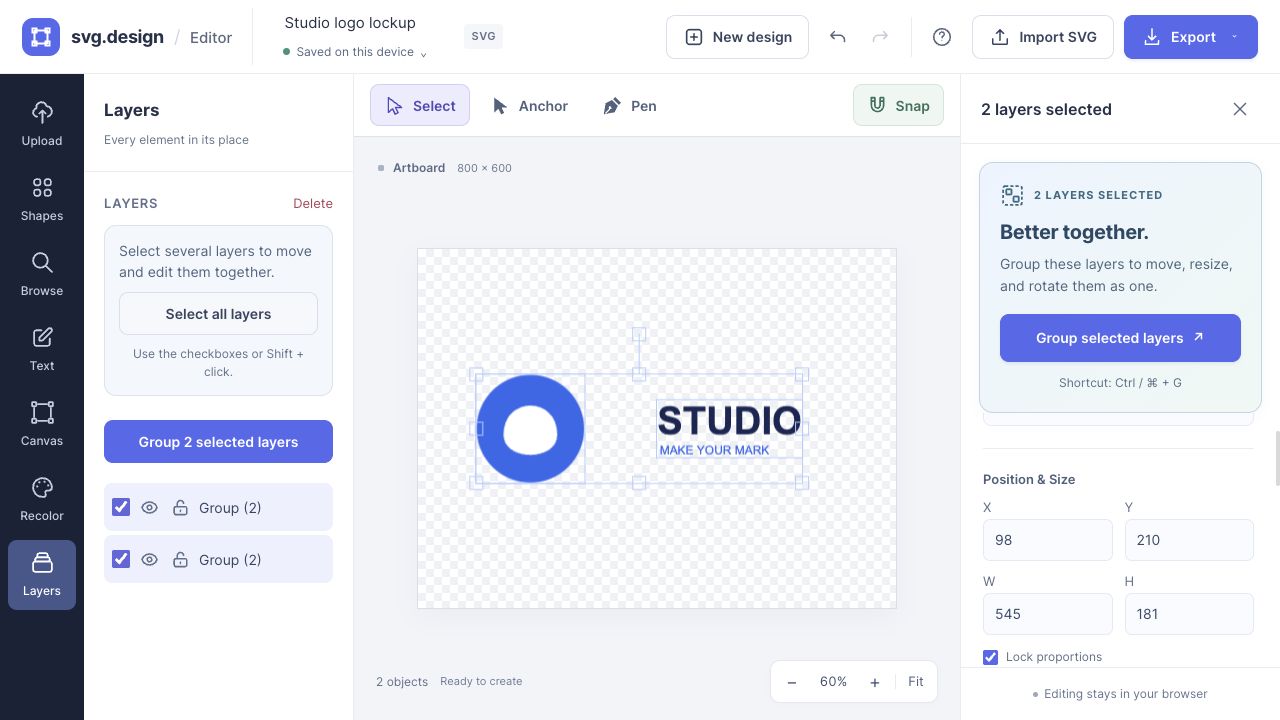
Worked example: merge a symbol and wordmark
Download the sample symbol and sample wordmark. Import the symbol, choose a Web (800×600) artboard, and turn off Match canvas to first SVG before importing the wordmark. Keep both imports grouped while positioning them.


Place the symbol to the left and the wordmark to the right, then align their visual centers with snapping. Leave clear space between them. In Layers, select both components and choose Group selected layers. Export SVG to save this two-file composition as one vector document. The wordmark uses live text, so compare its lettering on the device where the file will be used.
1. Set up the shared artboard
Open the editor and choose New design if a previous draft is loaded. Set a canvas preset or custom width and height in the right panel for your intended output.
If the first SVG should define the output dimensions, leave Match canvas to first SVG enabled in Upload. Turn it off when you want to keep your chosen artboard size.
2. Import the SVG files
Use Import SVG, drop files onto the canvas, or paste SVG markup. Import each file you want to include. The contents share the canvas; importing a second file does not create a second page.
Keep the originals. An editable import can differ from its source when it uses unavailable fonts or complex SVG effects, so compare the appearance before assembling the final design.
3. Arrange each component
- Use Select to choose an imported graphic and drag it into position.
- Resize with selection handles or enter width and height in Position & Size. Keep Lock proportions enabled to avoid stretching logos.
- Enable Snap for alignment to the artboard and nearby object edges or centers. Use grid snapping for regular placement intervals.
- Use the right panel’s Align to artboard controls for exact centering.
- Adjust stacking order so backgrounds sit behind text and symbols.
For a logo and wordmark, keep each import grouped while positioning it. Ungroup only when you need to change an internal part.
4. Edit colors, text, or paths
If selecting an illustration selects all its parts, choose Ungroup & edit elements. You can then recolor one shape, change editable text, apply a gradient fill, or reshape a path with Anchor editing.
For a palette change across all imported artwork, open Recolor. It replaces matching solid colors throughout the canvas, so a repeated color in two imports can change in both.
Shift-click the finished components or select their checkboxes in Layers, then choose Group selected layers if they should move together.
5. Check bounds and export one SVG
Review the artboard edges before exporting. Objects beyond the output area can be clipped. Adjust the canvas size and artwork placement to include everything you want, or leave intentional whitespace around the composition.
Check for Saved on this device, then choose Export → SVG. The download contains the shared composition as one SVG document. For a lasting backup, keep this file rather than relying only on local drafts.
To reduce file size, try the exported file in the SVG optimizer and compare the optimized artwork with the original.
What merging does and does not do
Merging files onto a canvas places their objects in one document. Grouping makes selected objects move together. Neither action performs a Boolean union or welds overlapping outlines into one path; that operation is not currently available in the editor.
The result is also not automatically a symbol-based SVG sprite with reusable symbol IDs. If you need a developer sprite system, inspect and structure the markup for that purpose rather than assuming a combined canvas provides it.
Questions about merging SVG files
Can I merge SVG files for free?
Yes. Importing, arranging, and exporting your artwork in the editor is free and does not require an account. Imported library assets can have their own license conditions.
Will the result stay editable?
Supported paths, shapes, and text remain editable objects in the editor. Export SVG for vector content; PNG and JPG exports are pixel images.
Why can’t I select one part of an imported file?
It is probably grouped. Use the prominent ungroup action, repeating it for nested groups as needed, then select the individual element.
Make it yours.
Keep this guide open and give it a try.