How to Recolor an SVG Online
Swap matching solid fill and stroke colors or apply palette presets, with separate guidance for gradients.
In this guide 6 sections
Need to change the colors of an SVG without touching a line of code? The free SVG editor has a built-in Recolor tab that detects solid fill and stroke colors in your file and lets you swap them individually or apply a whole new palette in one click. This guide walks through the entire workflow.
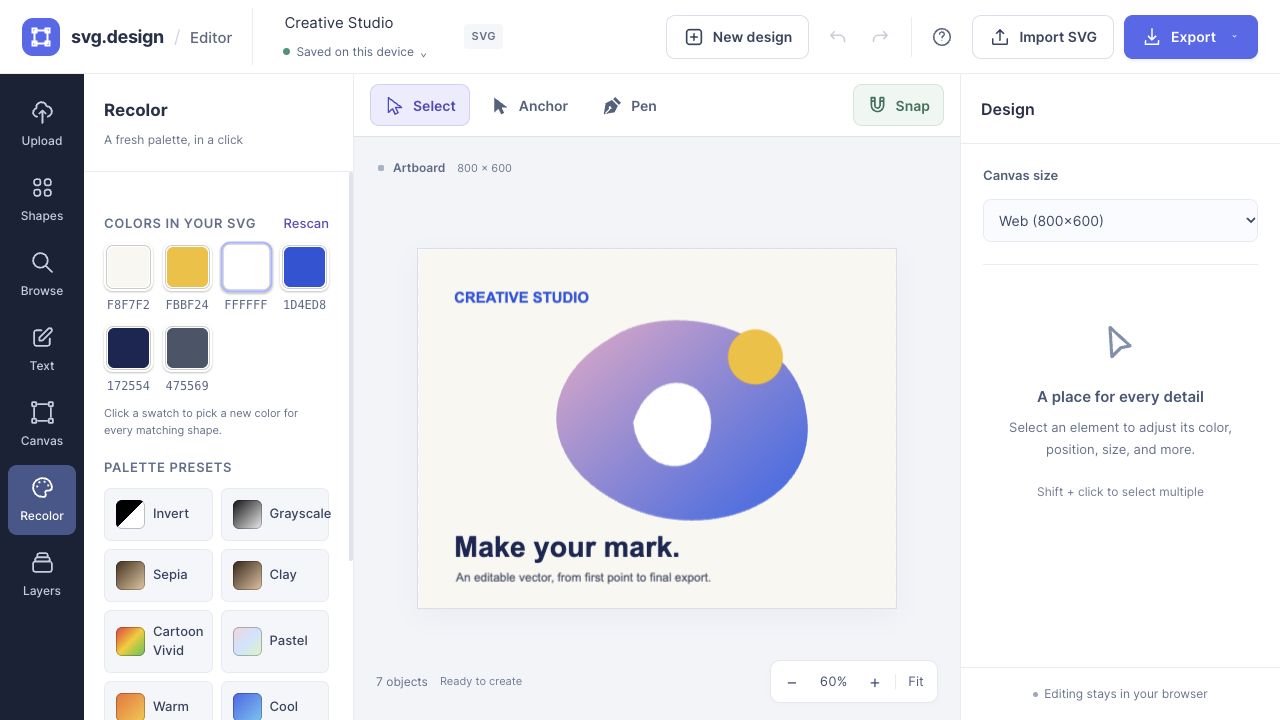
What the Recolor tab does
When you open an SVG, the Recolor tab scans every shape, path, and text element and lists the solid fill and stroke colors it finds. From there you can:
- Replace any single color everywhere it appears with one click.
- Apply ready-made palette presets like Grayscale, Sepia, or Cartoon Vivid.
- Generate a random palette or reset back to the original colors instantly.
Because it works on the colors themselves — not individual shapes — you can restyle an entire illustration in seconds.
How to recolor an SVG in 4 steps
Step 1: Open the editor and load your SVG
Go to the SVG editor and upload your file, drag it onto the canvas, or paste SVG code with Ctrl+V. You can also open any template from the library directly in the editor.
Step 2: Open the Recolor tab
Click Recolor in the left sidebar. The tab immediately shows a swatch for every color detected in your artwork, with its hex value beneath it.
Step 3: Swap colors or apply a preset
Click any swatch to open a color picker and choose a new color — every shape using the old color updates at once. Prefer a shortcut? Apply a palette preset, hit Randomize colors for inspiration, or click Reset to original to start over. Use Rescan after major edits to refresh the color list.
Step 4: Export the result
When you are happy, export the recolored file as SVG, PNG, or JPG from the top toolbar. The editor performs the recoloring in your browser. Keep an exported SVG copy as well as your local draft.
Palette presets explained
The Recolor tab includes one-click presets that transform your original colors:
- Invert — flips every color to its opposite for a negative effect.
- Grayscale — converts the artwork to shades of gray.
- Sepia — applies a warm, vintage brown tone.
- Clay — remaps everything to a soft terracotta, single-material look.
- Cartoon Vivid — boosts saturation for punchy, playful colors.
- Pastel — softens colors into light, muted tones.
- Warm and Cool — shifts the whole palette warmer or cooler.
- Neon — pushes colors to bright, electric hues.
- Noir — high-contrast black and white.
Presets always work from your original colors, so switching between them stays clean with no gradual color drift.
Recolor vs. fill
The Recolor tab is best for swapping existing colors across an entire SVG at once. If you instead want to fill individual shapes and paths with specific colors, see How to Fill SVG Shapes with Color in the editor. The separate Shape Filler places repeated objects inside a container shape.
Rescan and reset safely
Use Rescan after adding or changing objects so the color list matches the current canvas. Rescanning establishes a new reference palette. Reset to original returns to that scanned palette, not necessarily the colors from the first file you imported.
For a single object, use the inspector after ungrouping if needed. For a color blend, use gradient fills. Before refreshing, check the local save status and export important work.
Frequently asked questions
Is recoloring free?
Yes. Recoloring and exporting in the editor is free, with no sign-up required for the editor.
Can I recolor just one shape instead of every matching color?
Yes. Select the individual element on the canvas (ungroup it first if needed) and change its fill or stroke in the Properties panel. The Recolor tab is for changing a color everywhere it appears at once.
Does it work with gradients?
The Recolor tab swaps solid fills and strokes. It leaves gradients and patterns untouched. To edit a linear or radial gradient, ungroup if necessary, select one object, and use Fill style and the color stops in the right panel. See the SVG gradients guide. Pattern editing is not provided by these gradient controls.
Will my file be uploaded to a server?
No. All detection and recoloring happens locally in your browser, so your artwork stays private.
Make it yours.
Keep this guide open and give it a try.