How to Create and Test an SVG QR Code
Encode a destination, style the code carefully, and test the actual downloaded or printed result.
In this guide 5 sections
The SVG QR Code Generator turns text or a URL into a customizable QR code with vector export. Start with the exact content, choose readable styling, and test the downloaded result. A code that looks attractive is only useful if people can scan it and reach the correct destination.
1. Enter and verify the destination
Replace the sample Content with your full destination, such as https://svg.design/docs/, then choose Generate QR Code. Check for typos, extra spaces, or an accidentally duplicated URL before styling.
Use a short, stable destination where possible. Longer content creates a denser code, which leaves smaller modules at the same print size. This generator encodes static content; it does not create an analytics dashboard or a service for changing the encoded URL after printing.
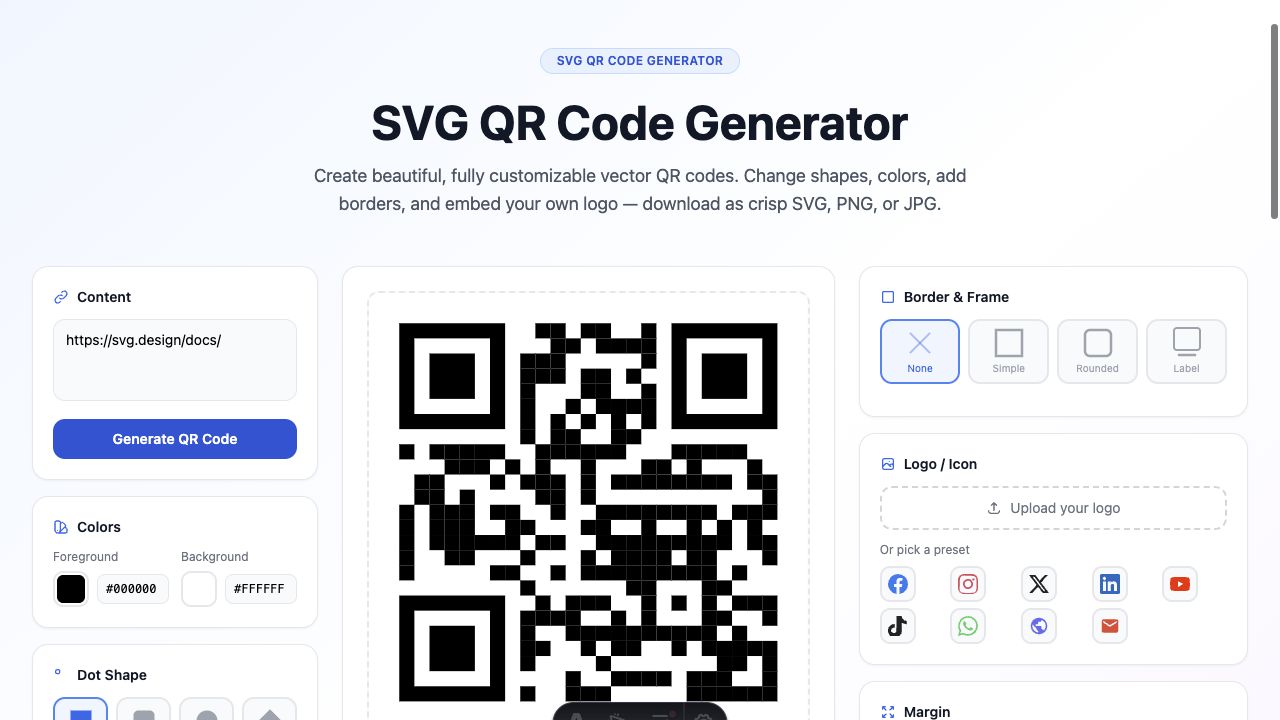
2. Keep foreground, background, and margin readable
Begin with a dark foreground on a light background. Maintain a clear quiet border around the code using Margin, and keep surrounding artwork outside that space. A decorative frame is not a substitute for a clear scanning margin.
Choose Dot Shape and Corner Eyes conservatively, then scan again after changing them. Small dots, unusual corners, weak contrast, or a busy background can make a styled code harder to read.
3. Add a frame or logo only when it earns its space
Border & Frame offers None, Simple, Rounded, and Label. A label can provide a short reason to scan, such as “View the menu,” but should not crowd the code.
Upload a logo or choose a preset if it is useful to the design. Adjust Logo size and white padding so the mark does not cover too much of the code. Choose an Error Correction level appropriate to the design; a higher setting can provide more redundancy but does not guarantee that an oversized logo will scan.
For a small printed code, a plain design without a logo is a sensible first test. Add decorative elements one at a time so you can identify which change causes a scanning problem.
4. Download SVG, PNG, or JPG
Open Download QR Code and choose the format you need. SVG is useful for layouts that will be resized and printed. PNG supports transparency, while JPG uses a solid background.
A transparent PNG or SVG placed over a textured surface can lose the contrast it had in the preview. Test the code with the actual background and avoid cropping away its quiet border. Keep the original download before combining it with a larger design in the editor.
5. Test the final version, including a print sample
- Scan the downloaded file with more than one device when possible.
- Confirm the destination opens and contains the intended content.
- Place the code at its final size in the actual layout and scan again.
- For print, check a physical proof under ordinary lighting and from a realistic distance.
- Repeat the check after changing colors, logo size, margin, or surrounding artwork.
If scanning fails, return to a plain dark-on-light code, increase the printed size or margin, reduce the logo, or shorten the encoded content. Exporting as SVG keeps edges scalable; it cannot compensate for an unreadable design.
Make it yours.
Keep this guide open and give it a try.