How to Animate an SVG with Presets
Apply animation presets to a whole SVG or individual elements, then export and test the animated file.
In this guide 5 sections
The SVG animator adds preset animations to an uploaded SVG. Choose the entire artwork or a particular element, set timing and easing, and download an SVG containing the animation. You do not need to write CSS to use the controls.
The current animator is based on presets, not a freeform keyframe timeline. Use it for motion such as a fading label, rotating symbol, or pulsing illustration rather than a complex sequence of manually drawn frames.
1. Prepare and upload the SVG
Upload an SVG up to the displayed 1 MB limit. Keep your unanimated source so you can return to it later. If the design needs layout or color changes, make those first in the editor.
Elements you want to animate separately should be separate objects. A single flattened path cannot have one internal region animated independently. You can try the sample wordmark SVG used below.

2. Pick the animation target
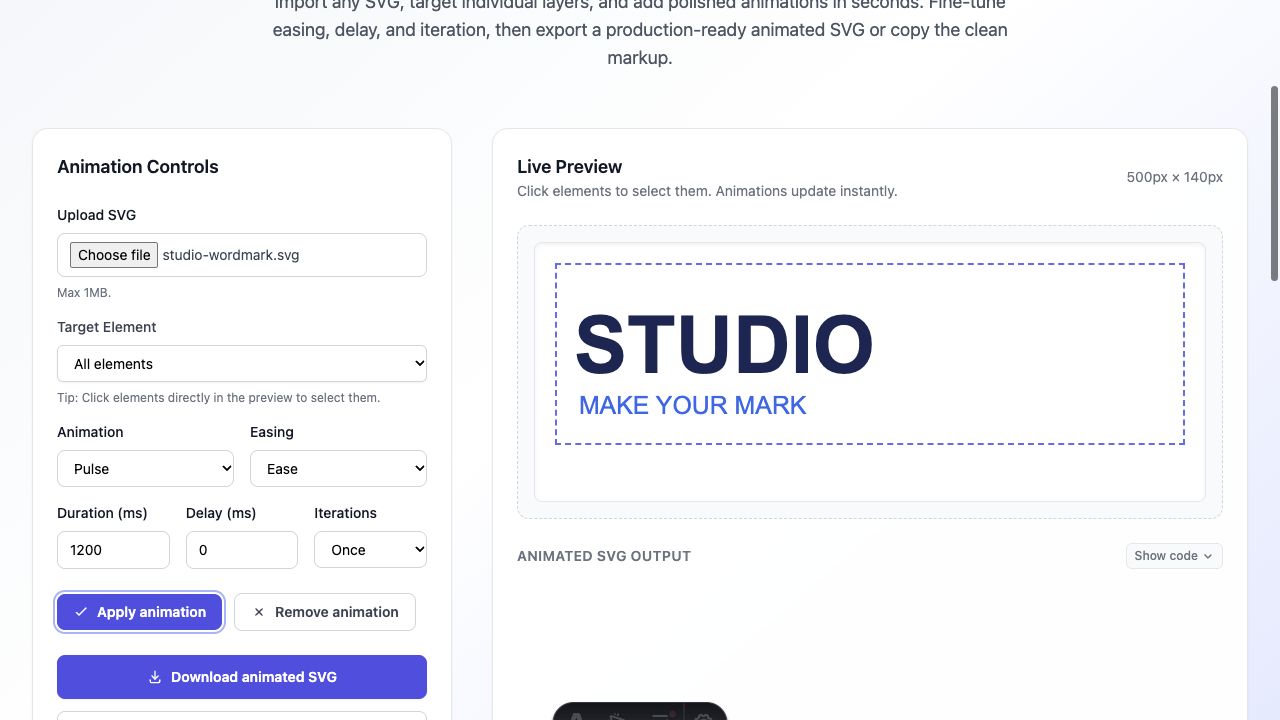
Use Target Element to choose All elements or a specific element. You can also click artwork in the preview to select it. Check the target before applying an animation; the first selectable element may be active after upload.
For a wordmark that should move as one unit, start with All elements. For a background that should remain still while a symbol moves, select only the symbol. The element labels help identify paths, circles, and text, even when the source lacks friendly layer names.
3. Set motion and timing
Choose an animation such as Fade In, Slide Up, Scale Up, Rotate, Pulse, Tilt, or Bounce. Start with a simple effect so you can judge whether it supports the design.
- Duration (ms): the length of one animation cycle. 1,200 ms is 1.2 seconds.
- Delay (ms): how long the selected target waits before starting.
- Easing: the change in motion speed. Linear suits a steady rotation; an eased transition can make an entrance feel gentler.
- Iterations: Once, two, three, or Infinite. Choose deliberately if the artwork will appear near reading content.
Choose Apply animation and watch the preview. Adjust a setting and apply again to revise that target. Use Remove animation when a selected element should return to a still state.
4. Export and test where the SVG will appear
Choose Download animated SVG or Copy animated SVG code. Show code reveals the generated markup. The animation is written as CSS inside the SVG; PNG and JPG snapshots cannot retain that motion.
Test the exported file in the actual website, presentation, or publishing platform. Some destinations strip SVG styles or render a still preview. If the file moves in a browser but not after upload, the destination’s SVG handling may be the limiting factor.
Troubleshooting and finishing choices
If the wrong object moves, recheck Target Element. If lettering changes, verify the font before animating. If the moving shape is cut off, leave enough space around it in the source artboard. If motion is distracting, shorten the sequence or use a still alternative.
Keep the animated SVG and the original source as separate files. This tool exports SVG animation; it does not provide GIF or MP4 export. For a package that folds over time, use Fold Studio’s separate workflow.
Make it yours.
Keep this guide open and give it a try.