How to Make SVG Transparent

In theory every SVGs supports transparency by default.
However, many tools export them with an extra rectangle or shape that fills the whole canvas with a solid color.
So even though the file is vector, it behaves like it has a background baked in.
This is very common when you:
- Vector trace raster images.
- Convert images to SVG.
- Generate vectors with AI tools.
- Download icons from different sources.
And unless you remove that layer, your SVG will never truly be transparent.
 The Simple SVG Transparency Fix 👇🏼
This is where SVG Editor comes in.
It’s a free online tool that lets you open and edit SVG files right in your browser.
No installs and no account needed.
You just upload your SVG, and you can immediately click all the layers and shapes inside it.
And that’s exactly what you need to fix the background.
How to Make an SVG Background Transparent ✅
The process is simple and fast.
First, go to https://svg.design/editor and upload your SVG file.
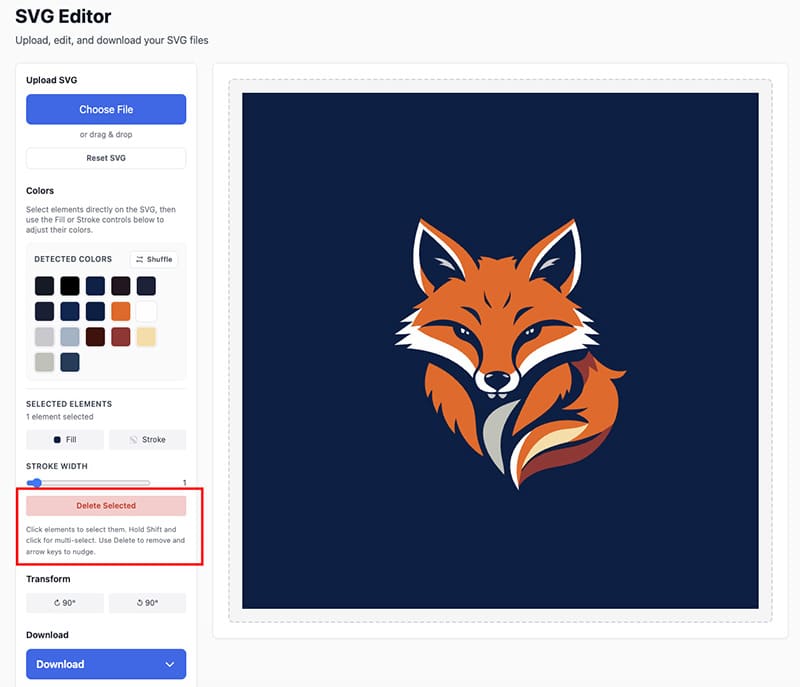
Once it loads, you’ll see your design on the canvas.
Now look for the background.
Usually, it’s a rectangle that:
- Covers the whole canvas.
- Sits behind everything else.
- Has a solid fill color like white, black, or any color.
Next, just click that layer directly to select it.
Then hit delete and that’s it.
The moment you remove that shape, your SVG becomes transparent.
Finally download the SVG again, and you’re ready to use it anywhere.
Why This Is So Useful for AI Vectors 🤖
If you’re using AI to generate SVGs, you’ve probably seen this issue a lot.
The design looks perfect, but there’s always some solid layer or even a fake checkered background color hiding behind it.

Instead of re-generating everything, you can simply open the file in SVG Design Editor, delete the background layer, and keep the rest of the vector exactly as it is.
It saves time and it saves frustration.
What Makes This Editor Special
Many vector editors can edit SVGs, but they’re often heavy and complicated.
SVG Design Editor keeps things simple, because you can:
- Click any shape or layer.
- Move, edit, rotate, flip or recolor the SVG,
- or delete it instantly.
So even if you’ve never edited vectors before, you can still clean up your SVG in seconds.
No Illustrator or Photoshop subscription needed for a simple background removal.
When Would I Need Transparent SVGs?
More often than you think.
For example:
- Placing logos on different backgrounds.
- Using lightweight SVG icons instead of PNGs on websites.
- Adding graphics on colored sections.
- Overlaying SVGs on top of other images.
- Using vectors in presentations or apps.
In all these cases, a transparent background is not just optional, but also essential.
Who Is This For?
This is perfect for you if you are:
- A web designer or developer working with vectors.
- A marketer working with online visuals or print files.
- A content creator adding transparent graphics to a website.
- A creator using AI-generated vectors.
- Or just someone trying to fix one SVG.

If you work with SVGs at all, this little trick will save you a lot of time.
Bye Bye SVG Background 👋
Making an SVG transparent shouldn’t feel like a big task.
With SVG Editor it really comes down to one simple click.
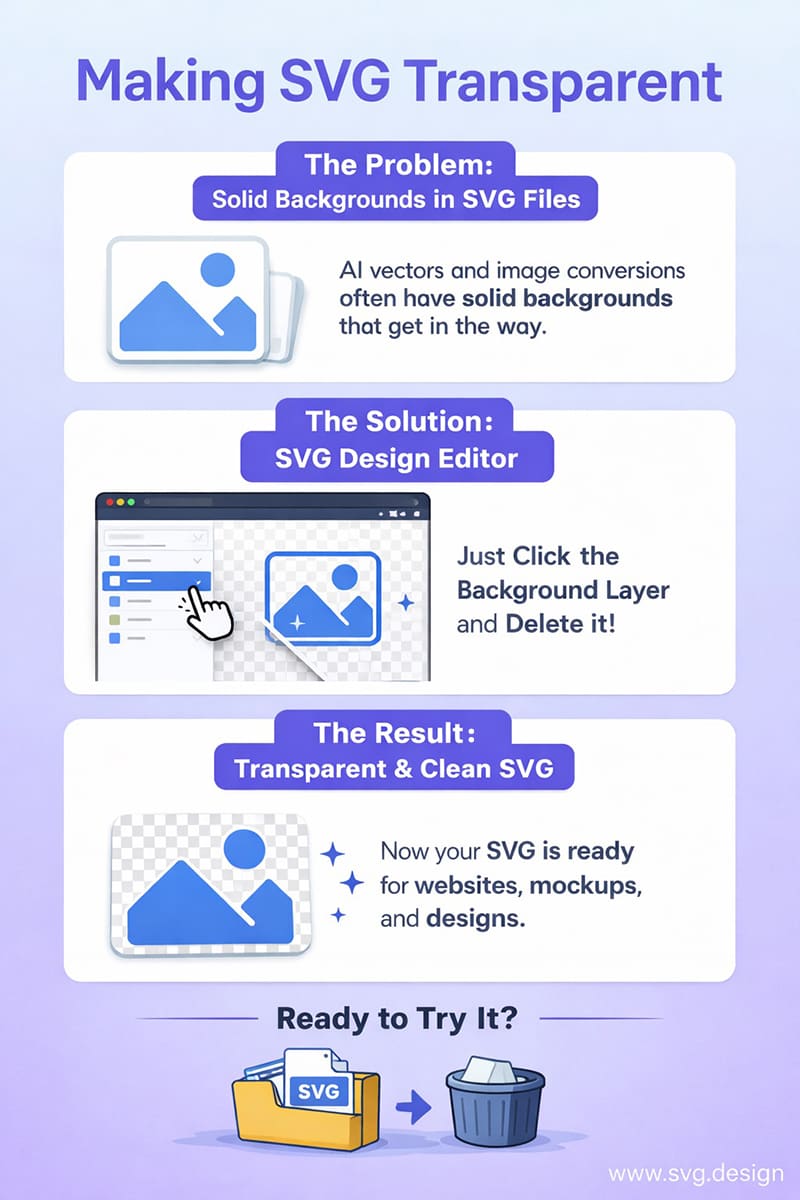
Upload your SVG, click the background layer and delete it.
Then download your clean file and that’s it.
No complex tools and no tutorials that take an hour.
Just a fast way to fix a very common problem.

About the Author
I'm a vector artist and 3D designer and the founder of SVG.design. I love creating beautiful visuals and sharing what I've learned about design, productivity, and creativity with fellow artists and makers.