How to Move Layers in SVG

SVG files are made of shapes and paths, not pixels.
That’s great for quality and it also means every element is usually its own object.
So when a shape overlaps another or some text sits in the wrong spot...
then all you need is a slight alignment.
But without the right tool, but that usually means opening complex desktop software.
And that’s where most people get stuck.
The Simple Online Solution 👇🏼
SVG Design Editor is a free web-based tool that lets you open and edit SVG files right in your browser.
You just upload your SVG, and instantly you can click, move, edit, recolor and clean up elements.
No downloads and no Adobe subscription needed.
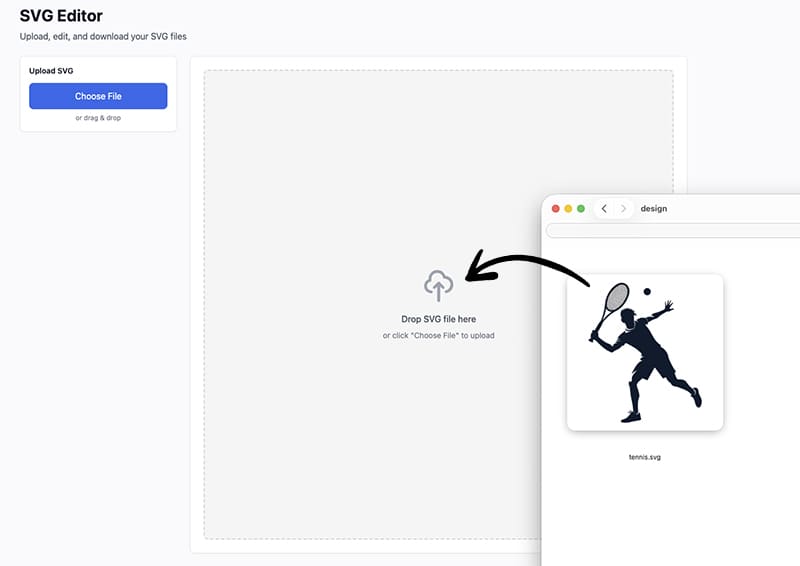
It just works online - drag and drop your SVG.
How to Move Layers in an SVG File
Here’s how easy it is.
First, go to 👉 https://svg.design/editor and upload your SVG file.
Once it loads, you’ll see your design on the canvas.
Now, simply click on any object in the SVG.
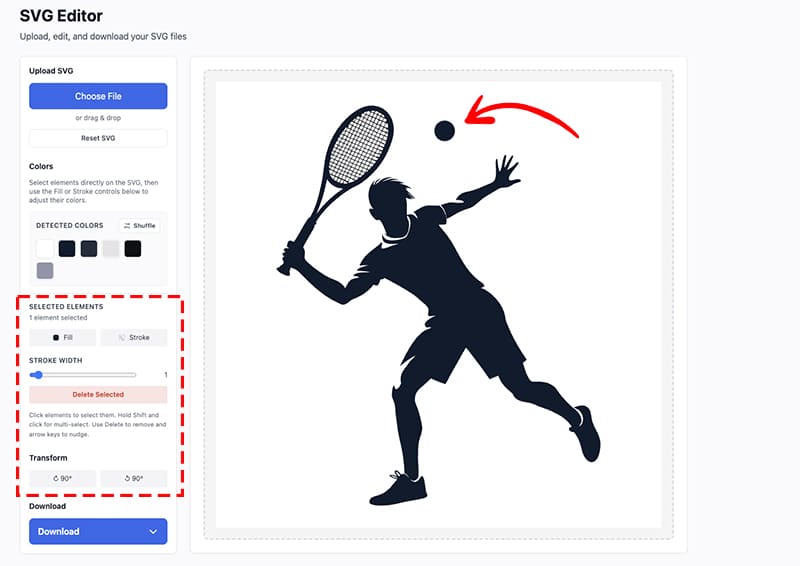
When it’s selected, you can drag it to move it wherever you want.
You can also flip the shape horizontally or vertically.
This means you’re literally moving SVG layers by clicking and dragging without editing the SVG code.
How to Select Multiple Elements (Shift)
Sometimes one shape isn’t enough.
Maybe a group of icons needs to move together...
or a whole section needs alignment.
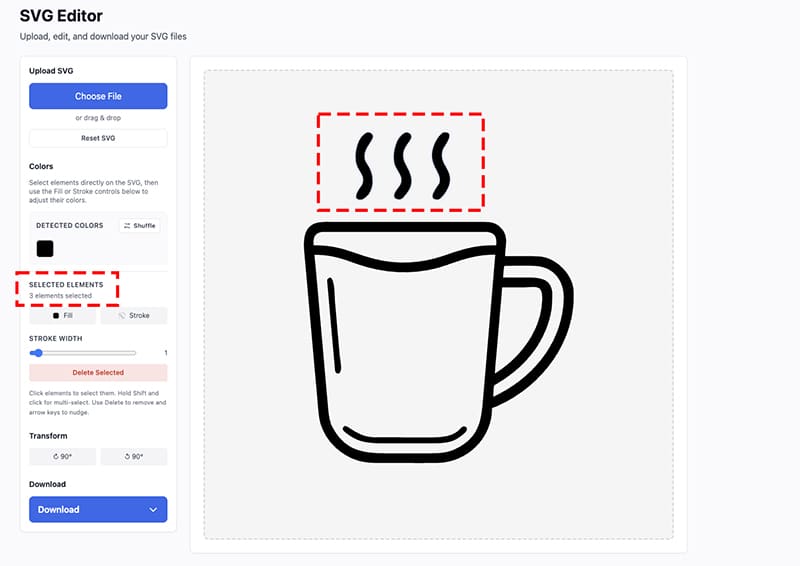
Just hold Shift on your keyboard, and click on multiple objects to select them.
Now you can move them all at once, which is simple and very handy.
More Than Just Moving Layers ✅
Once you start editing, you’ll notice you can do much more.
With any selected element, you can:
- 🎨 Change the fill color and recolor the entire SVG
- ✏️ Adjust the stroke color or size.
- 🗑️ Delete elements you don’t need.
So instead of opening another tool, you can quickly clean up or optimize your SVG.
Why This Is So Useful
This is especially helpful if you’re working with:
- AI-generated SVGs that need cleanup.
- Icons or illustrations from free libraries.
- SVG Logos that need small tweaks.
- SVGs converted or vector traced from raster images.
Instead of re-exporting or starting over, you just fix what’s wrong.
The Benefits of an Online SVG Editor
Using SVG Editor gives you a few big advantages:
⚡ Fast
Upload and start editing instantly without signing in.
💻 No Software Needed
Everything runs in your browser, even on a mobile device.
🎯 Easy to Use
Click to select and drag to move. There are no complex panels.
🖼️ Full Control
Edit colors, strokes, positions or delete elements.
💸 Free
No sign-up and no cost, just use it.
Who Is This For?
This is perfect for you if you are:
- A web designer tweaking icons.
- A developer adjusting UI graphics.
- A marketer editing visuals.
- A graphic designer fixing a logo.
- A creator working with AI generated SVGs.
- Or just someone who needs to move one shape.
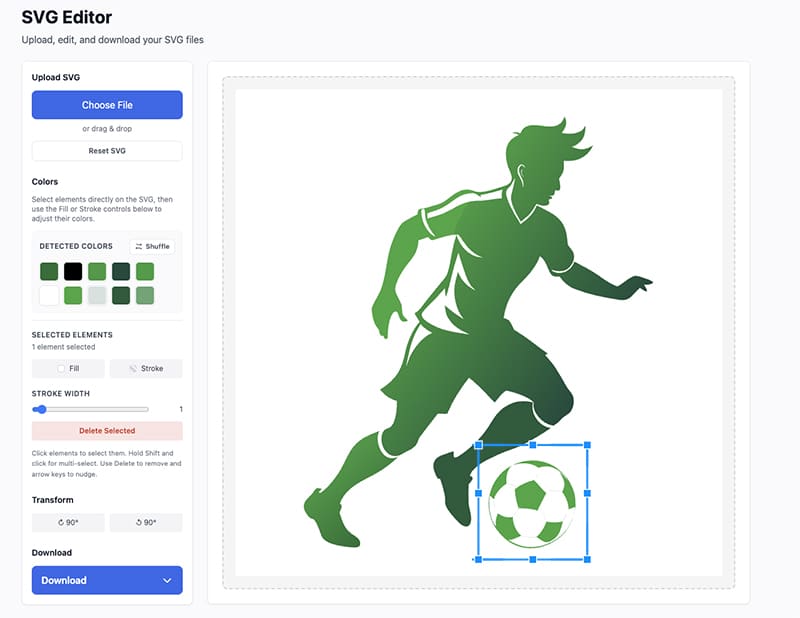
If you work with SVGs at all, this will save you time.
Click, Drag and Done ✅
Moving layers in an SVG file shouldn’t feel complicated, because with the SVG Editor, it’s as simple as clicking and dragging.
Upload your SVG, click any object and move it where you want.
Hold Shift to select more or change colors if needed.
Delete what you don’t want and you’re done.
No heavy tools, but just quick fixes.
NB: if you prefer Photoshop, you can also easily convert your SVG to layered PSD file.

About the Author
I'm a vector artist and 3D designer and the founder of SVG.design. I love creating beautiful visuals and sharing what I've learned about design, productivity, and creativity with fellow artists and makers.